

SheetLink / 5 min
Find your way through the drawing set
Open the elevation, follow its references, and keep the detail beside the work.
Example project: Cedar Pavilion. Fictional drawings, actual product interface. Tutorial steps describe the intended workflow; complete project acceptance remains under review.
Open the project
Sign in and open your drawing project. Start with the sheet list and confirm the drawing revision you intend to review.
Choose an elevation
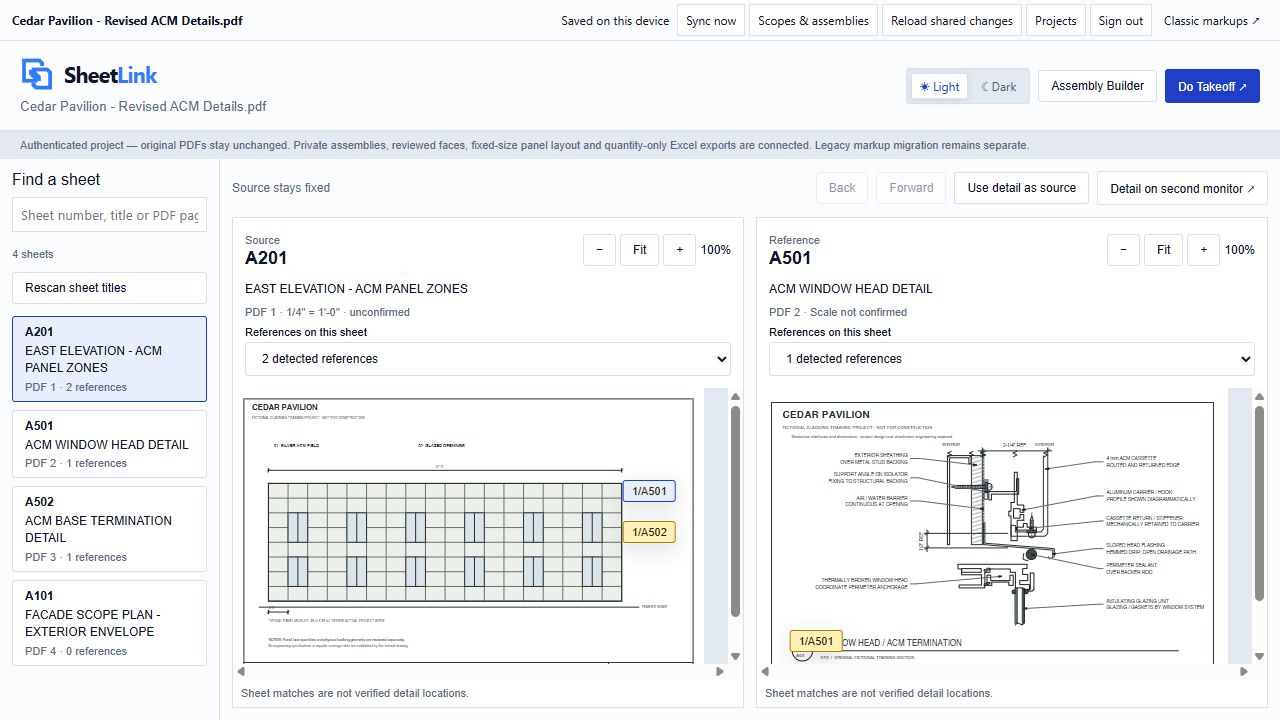
Use sheet numbers and titles to find the facade elevation. Check the visible title block; detected metadata is a navigation aid.
Follow a reference
Open the referenced sheet or detail beside your elevation. A matched sheet does not establish an exact detail location: verify the callout and detail number yourself.
Keep the context
Use the split view or detached detail window when you need the detail visible while reviewing another sheet. Check the source and destination before relying on a reference.
You can identify the elevation, its revision and the applicable detail without losing the drawing context.